SIP Registration Report

SIP Registration report available under SIP section of Mutual Funds. The SIP Registration report will display the details under head scheme Name, Mandate Id, SIP Registration Date, SIP Dates, Frequency, amount etc.
How to Search Scheme:
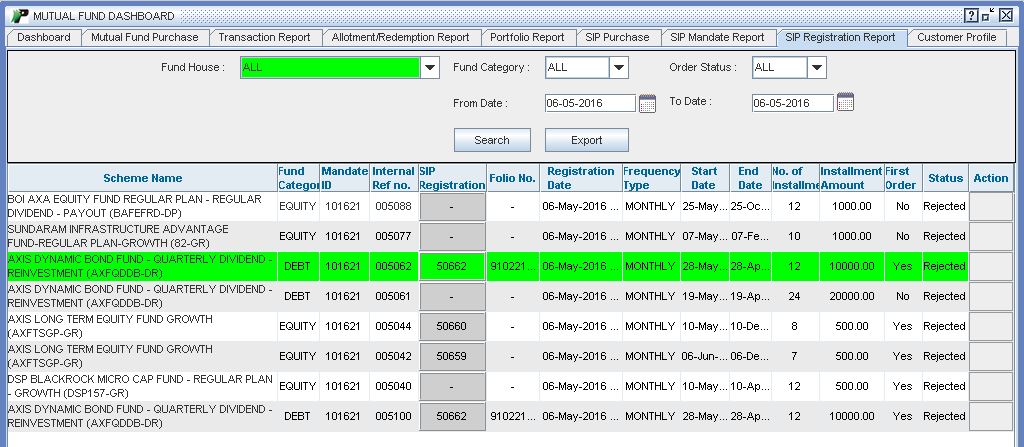
SIP Search window displays the list of schemes in which SIP can be registered. SIP schemes can be searched by following the below steps:
 |
Fields Name
Filter Criteria
-
Fund House - To view the details of a particular AMC, select respective AMC from dropdown list.
-
Fund Category - You can select category for selected AMC .
-
Status-SIP Status whether SIP is Active, Cancelled, Expired (i.e. SIP which is already completed) or Rejected by exchange due to any reason.
-
Date Range - Select the date range you want to view the data.
-
Search Button - All above filter applied would worked on pressing “Search” button.
-
Export to Excel - To export report in Excel.
Output Field
-
Scheme Name - Scheme in which SIP is registered.
-
Fund Category - Fund Category for Registered SIP .
-
Mandate Id-It is the One Time Mandate Registration id which was generated against the respective SIP. This mandate id would be sent to exchange along with registration request
-
Internal Reference no - Internal unique no. assigned against a order while sending to exchange. The reference no. Can be generated as pe the existing logic.
-
SIP Registration Number- This is a unique id being assigned by the exchange against the SIP. We will get this in response of SIP registration request.
-
Folio Number - This would be provided in allotment File once allotment is done.
-
Registration Date - It is a date at which SIP registration is requested.
-
Frequency Type - SIP Frequency which has been selected at the time of Registration like, Monthly, Quarterly, etc
-
Start Date - This is a SIP Start date chosen at the time of Registration.
-
End Date-T his is SIP End date i.e. Last date of Installment chosen while setting up SIP
-
Number Of Installment - Total Number of installment specified by the user at the time of Registration
-
Installment Amount - It’s also know as SIP Amount which to be debited from client’s account.
-
First Order Today - If customer wants to generated first order on date of Registration, customer needs to select the Flag on Registration. If Flag is checked it should be updated with “yes” else “No”
-
Status - It is the Current Status of SIP, like ACTIVE, CANCELLED, EXPIRED and REJECTED due to any reason.
-
Action - Delete button required to cancel an ACTIVE SIP. It would be disabled if SIP is already cancelled or Expired. Once you click Delete you will be asked to confirm the transaction you want to delete. Once you confirm and Delete the active SIP, your all upcoming SIP would get cancelled.